Cull your Fujifilm shoot before Lightroom sees it.

Palomino moves you through a big RAF shoot in minutes.

Palomino is a fast, focused culling app for macOS. It reads the JPEG preview embedded in every Fujifilm RAF file, so you move through thousands of frames without waiting on a single RAW to decode. Rate the keepers, skip the rest, and hand a tight selection to Lightroom or Capture One. Your photos never leave your Mac.

Download Palomino on the Mac App Store

Palomino is free to download, with exports up to 50 photos per session. Palomino Pro removes the limit for a one-time $29.99 purchase.

Palomino runs on macOS 15 Sequoia or later, on both Apple silicon and Intel Macs. It reads RAF files from X series and GFX bodies with the same embedded-preview speed it gives every other RAW format.
Why a Fujifilm shoot is slow to cull in an editor

Lightroom and Capture One decode the full sensor file and build a preview for every frame you import, including the frames you are about to reject. A 40 megapixel X-Trans file takes significant work to demosaic, and GFX files are heavier still: a 102 megapixel frame can pass 200MB uncompressed, so a full card from an event runs to hundreds of gigabytes. Importing all of that just to throw most of it away is the slow part of the job.

Palomino skips it. Fujifilm writes a finished JPEG preview into every RAF, and Palomino shows you that preview instead of decoding the RAW. The next frame is loaded before you ask for it, so moving through the shoot never stalls, whatever the sensor resolution.

Your film simulation, as shot

The preview inside a RAF is rendered by the camera with the film simulation you shot: Classic Chrome stays Classic Chrome, Acros stays Acros. Cull in Palomino and you judge every frame with the look you chose at the moment you pressed the shutter. Import the same file into Lightroom and the default preview is Adobe's rendering until you assign a camera-matching profile, which is one more step between you and your own pictures. Culling from the embedded preview means the decision you make matches the photograph you meant to take.

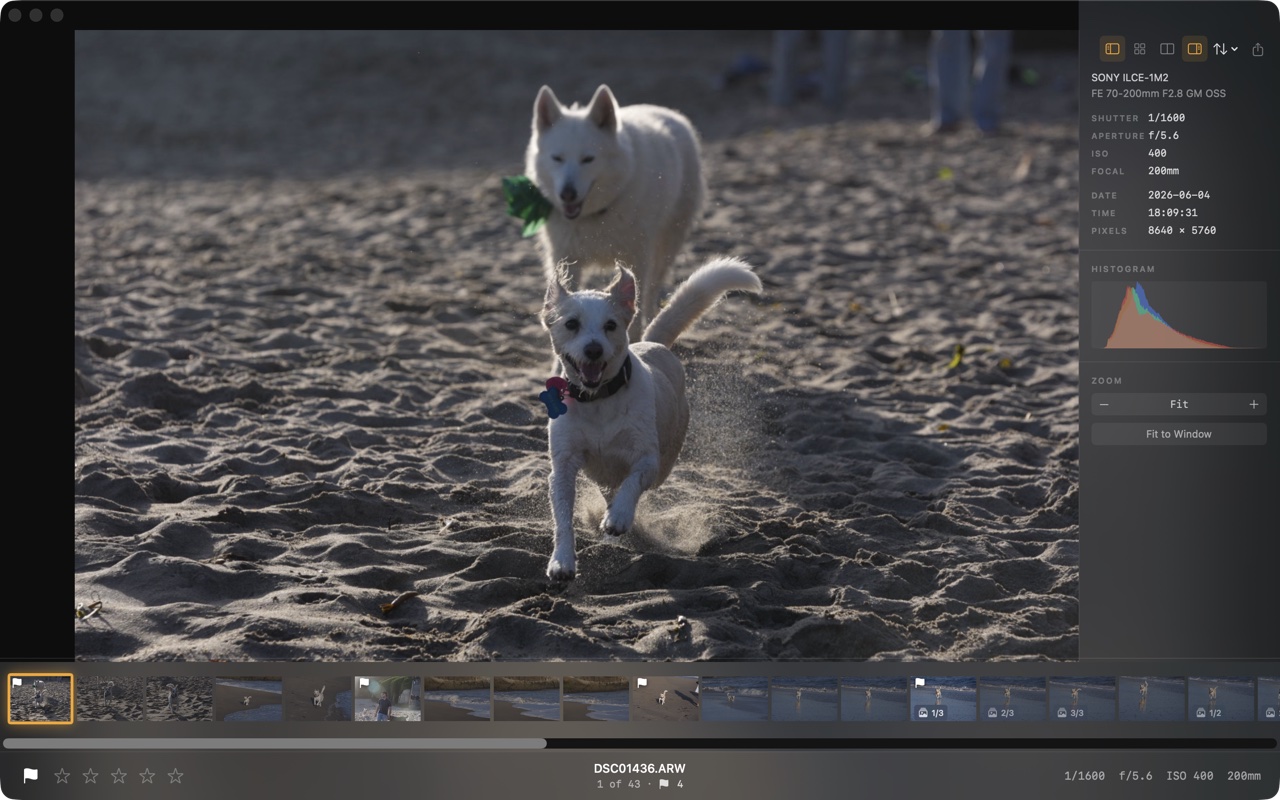
Palomino preview view: a large image with an info panel and a filmstrip of thumbnails along the bottom
The preview view puts one frame front and center with a filmstrip underneath. Palomino reads the embedded preview instead of decoding the full sensor file, and it loads the next shot before you ask for it, so moving frame to frame never stalls. The info panel shows the camera, lens, and full exposure data, and your picks light up in the filmstrip as you rate from the keyboard.

Reads RAF directly

Palomino opens Fujifilm RAF files using the embedded JPEG preview, so there is no conversion step and no waiting. X series and GFX files work the same way.

Keyboard-first culling

Press 1 to 5 to rate, P to pick, and X to reject. Each press moves you to the next frame, so you can work a whole shoot without touching the mouse.

Hands keepers to your editor

Ratings and labels are written to standard XMP sidecar files, which Lightroom, Capture One, and Bridge read. Export your selects to a folder, import that folder, and your stars arrive with it.

Tools for portraits and bursts

Best of a burst

Palomino groups frames shot in quick succession and marks the sharpest one with a crown. A 40-frames-per-second run from an X-H2S becomes a single decision: confirm the crown, reject the rest with one shortcut.

Face-priority zoom

Press V to jump to 300 percent on the largest face, so you can check eyes and focus on a portrait in one key. A badge marks frames where someone blinked.

Color labels

Press 6 to 9 to tag frames red, yellow, green, or blue, then filter to one label. Labels are written to XMP, so they travel to Lightroom and Capture One.

The workflow

Cull the whole card in Palomino, then import only the keepers. Your editor never builds a preview for a frame you rejected.

1Open the card in Palomino

Point Palomino at your shoot. Thumbnails and previews come from the embedded JPEGs, so a thousand RAF files load fast.

2Rate and reject

Move through every frame with the keyboard, flagging keepers and rejecting the rest. Filters narrow the view to exactly what you want.

3Export keepers to a folder

Palomino copies your selects into a folder by flag or star rating, optionally splitting high-ISO frames out for denoising.

4Import into Lightroom or Capture One

Your editor ingests a folder of keepers with XMP ratings attached. It builds previews for the frames worth your time and none for the rest.

move   15 rate   P pick   X reject   V face zoom   G grid   C compare   E export

Your photos never leave your Mac

Palomino does its work on your machine. The app runs in the macOS App Sandbox and has no analytics, no tracking, and no third-party SDKs, and it never sends your photos or ratings anywhere. The only network activity is Apple handling a Pro purchase, which never involves your photos. Your RAF files, ratings, and folder names stay where they are.

Frequently asked questions

Why is Lightroom slow with RAF files?

Lightroom decodes the full sensor data and builds previews for every imported frame. X-Trans demosaicing is demanding at 40 megapixels, and 102 megapixel GFX files are large on top of that, so importing a full card takes a long time. Culling before import with a preview-based tool like Palomino means Lightroom only ever does that work for your keepers.

Does Palomino show my film simulation?

Yes. The preview embedded in a RAF is rendered by the camera with the film simulation you shot, and that preview is exactly what Palomino displays. Classic Chrome, Velvia, Acros, and every other simulation appear as you set them.

Does Palomino work with GFX files?

Yes. Palomino reads the embedded preview, so a 102 megapixel GFX frame browses as quickly as a 26 megapixel X series frame. File size affects copying and storage, not culling speed.

Is the preview full resolution?

No, and no culling tool that reads embedded previews shows the full pixel grid. The preview is the JPEG your camera rendered into the file, which is plenty for judging composition, exposure, expressions, and focus at normal magnifications. Pixel-level inspection belongs in your editor, on the keepers.

Which Fujifilm cameras does it work with?

Palomino works with any camera that writes RAF files, from the X100 series and X-T line to the GFX medium format bodies.

Try it on your next shoot

Palomino is on the Mac App Store, free to download. Open your next Fujifilm shoot in it and cull the card down to your keepers before Lightroom ever sees a file.

Download Palomino on the Mac App Store