Getting started
What Palomino does, what it leaves to your editor, and how to open your first folder.
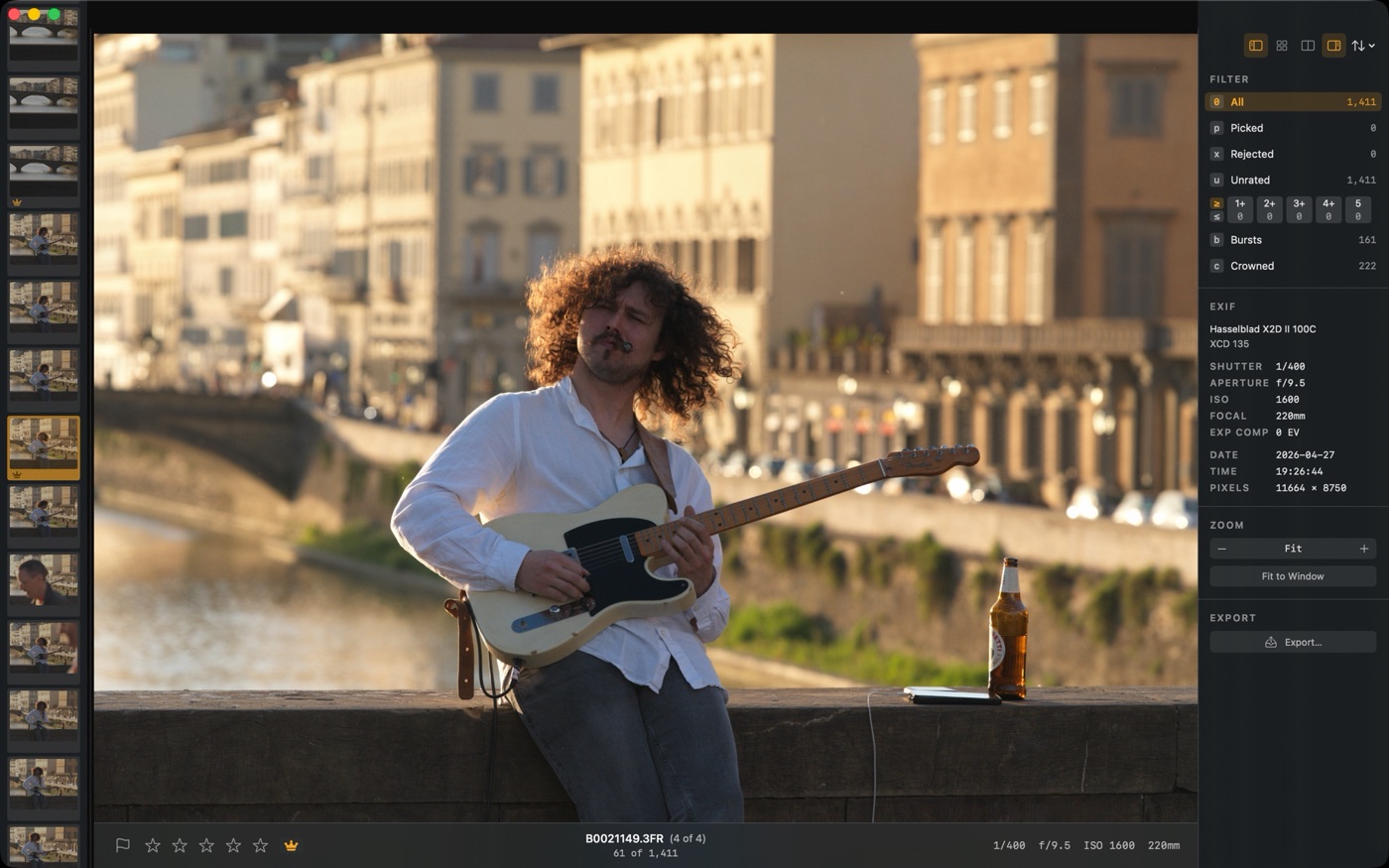
What Palomino does
- Loads folders of RAW files instantly using the embedded JPEG preview each camera writes at capture time.
- Lets you rate, flag, and label every photo using single keystrokes, advancing automatically to the next frame.
- Groups burst sequences and lets you pick the best frame and reject the rest in one step.
- Copies your selects to a destination folder, ready for Lightroom, Capture One, or a denoiser.
What Palomino leaves to your editor
- No RAW development, color grading, or retouching.
- No catalog or database. Your files stay where they are.
- No cloud sync, and no renaming of your original files. Copy to Folder can name the copies it writes from a template, and the originals stay untouched.
- Palomino does not control the camera, so it does not capture tethered shots. It can watch a folder for new frames as your tethering software saves them.
Opening a folder
- Click Open Folder on the welcome screen, or press ⌘O from anywhere in the app.
- Select the folder containing your photos and click Open.
- Palomino scans the folder and displays the first photo. Your previous ratings and picks are restored automatically if you have been here before.
You can also drag a folder directly onto the welcome screen.
Folders that keep photos in subfolders
Some folders keep their photos one level down, such as a card copied with its DCIM layout intact. When the folder you open has no photos at its top level but its subfolders contain some, Palomino shows an alert with the photo and subfolder counts and offers Include Subfolders. Accept it and the photos from every subfolder load as one set. The choice is remembered with the folder in your recents, so reopening it later includes the subfolders again without asking.
Culling straight from a card
You can open a folder that lives on a camera card: a card in a reader, or a card presented by a camera connected over USB. Palomino detects this and treats the card as read-only. A "Card, read-only" pill appears in the status bar, and your culling session is saved on this Mac instead of on the card, so nothing is written to the card itself.
Your ratings and picks work exactly as they do anywhere else, and they are waiting for you if you later open the copied folder from your hard drive. The option that moves unrated photos to the Trash is disabled for card sources, because files on a card are never changed.
Background work
When you open a folder, Palomino analyzes the photos in the background to find faces, judge sharpness, group bursts, and read capture dates. If that work runs longer than a moment, a small window titled "Background work" appears and lists what is running. The window appears over the main window without taking focus, so you can keep culling. It behaves like any other window after that, so clicking the main window brings the main window to the front, and it closes on its own when the work finishes.
Recent folders
The welcome screen lists your recently opened folders with completion stats ("234 of 400 rated") so you can see at a glance whether a session is finished or still in progress. Each row shows a small contact sheet built from the folder's photos. Click any entry to reopen it, or move through the list with the arrow keys and press Return to open the selected folder.
When a recent folder cannot be opened because its card was ejected or the folder was moved or deleted, Palomino names the folder and says it is not available. From that alert you can open the folder picker to find it, remove the entry from the recents list, or cancel.
The same folders are available from File > Open Recent while you are culling, so you can jump to another recent folder without closing the one you have open. Choosing the folder that is already open does nothing. If a folder is on a card or drive that is not connected, Palomino opens the folder picker at its last known location instead.
To put a folder away and pick another, choose File > Close (⌘W). Palomino returns to the welcome screen with your session saved, so you can open the next shoot without relaunching the app.
Watching for new files
Palomino can keep the open folder in sync with new files as they arrive. Turn on Watch the open folder for new files in Settings (⌘,) under the General tab. It is off by default and takes effect the next time you open a folder.
With it on, any photo added to the folder you opened appears in Palomino on its own, without moving you off the photo you are judging or changing your filter. This is useful during tethered shooting, when your capture software writes new frames to the folder while you cull the ones already in.
Supported formats
Palomino opens RAW files from most major cameras, plus JPEG and HEIF.
RAW formats: ARW, CR2, CR3, CRW, DCR, DNG, ERF, FFF, IIQ, MOS, NEF, NRW, ORF, PEF, RAF, RAW, RW2, RWL, SR2, SRF, SRW, TIFF, 3FR
Other formats: HEIC, JPEG
RAW+JPEG and RAW+HEIF pairs
If your camera shoots in RAW+JPEG or RAW+HEIF mode, Palomino detects the pairs automatically at scan time. The JPEG or HEIF companion is used as the pixel source for previews and thumbnails: it is faster to decode, and the quality is identical at normal viewing distances. The RAW file remains the identity of the photo for ratings, copies, and sidecar writes.
A paired photo shows a small badge in the info panel so you know the companion is present. The photo count in the filmstrip reflects the pair as a single entry, not two separate files.
RAW+JPEG pairing cuts your visible photo count in half on dual-slot cards. If a card that usually shows 600 photos suddenly shows 300, this is why, not data loss.
Why previews are instant
Palomino never decodes full RAW sensor data for the preview pane. Every RAW file contains an embedded JPEG preview that the camera writes at capture time, using the same processing engine as a camera JPEG. Palomino reads that embedded preview using Apple's ImageIO framework, which is 10 to 100 times faster than full RAW decoding. A background prefetch window keeps the next several photos already decoded in memory before you press the arrow key.
Previews look different from my editor. The embedded preview reflects your in-camera Picture Profile or Creative Style, not your editor's default rendering. This is expected: you are culling based on the camera's interpretation, which is the same standard your camera's LCD uses. Switch to your editor for final rendering decisions.